

SQL files
A Query Tool tab can hold a .sql file: you open the file into a tab, and saving writes the tab’s SQL back to it. A
tab that has no file is not lost either: pgjumbo keeps it as a draft, and asks before it closes. That is on
Drafts, closing and quitting.
Open a .sql file
Section titled “Open a .sql file”Choose FileOpen… (⌘ O (Ctrl+O on Windows and Linux)), or click Open SQL file… on the start page. Your system’s Open SQL File dialog appears; it shows SQL files first and has All files too. Files also open from the start page’s recent files and from the Library’s My scripts.
The file opens in a Query Tool tab named after it. Opening a file never runs it.
| What is in front when you open the file | Where the file opens |
|---|---|
| An empty Query Tool tab that has no file | In that tab. |
| Any other Query Tool tab, or a data tab | In a new tab on the same server and database. |
| Another kind of tab, or none; a server, database or object selected in the Explorer | In a new tab on that object’s database, or on the maintenance database when the server itself is selected. For a server that is not connected, on its maintenance database. |
| The start page (Open SQL file…) | In a new tab on the server you connected to last, or the first server in the Explorer, on its maintenance database. |
FileOpen… is greyed out while no Query Tool tab or data tab is in front and nothing is selected in the Explorer. On the start page, Open SQL file… is greyed out until you have added a server, because a file always opens on one. When the new tab’s server is not connected, the tab opens anyway and waits for it (see A tab that waits for its server). To run the file on another database, change the tab’s database in the toolbar (see The Query Tool).
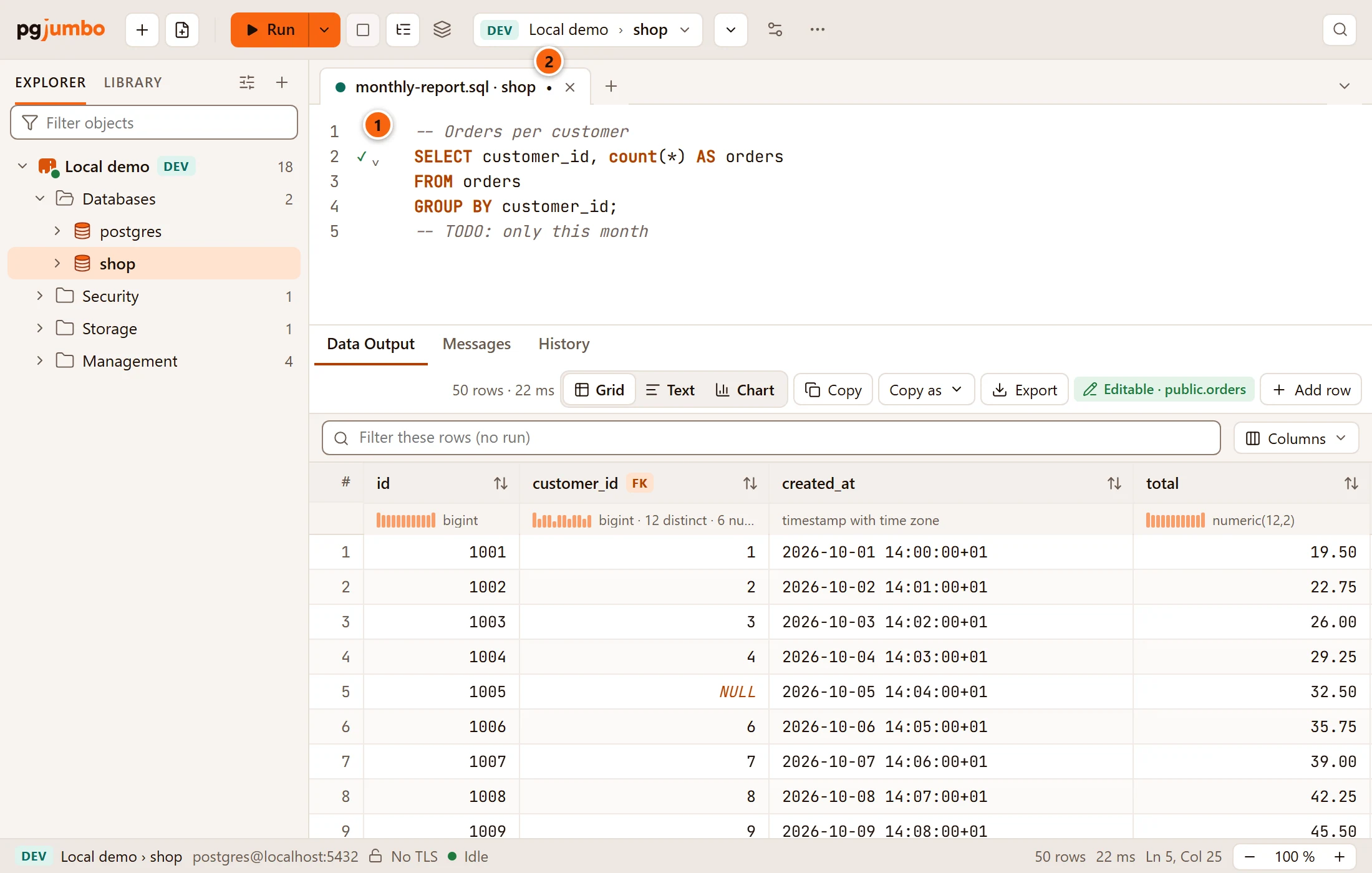
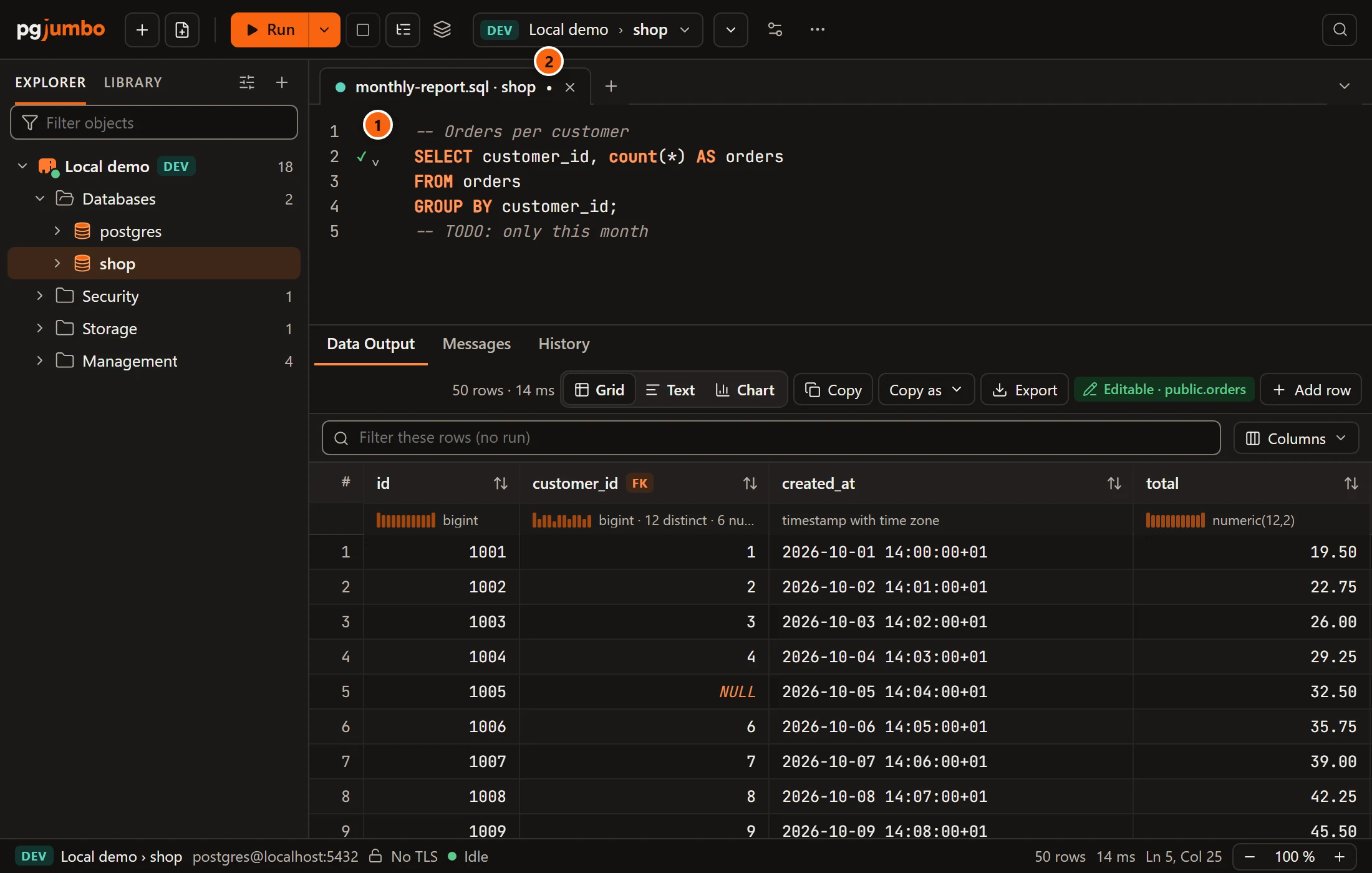
- 1 The tab carries the file’s name, then the database it runs on:
monthly-report.sql · shop. Hover over it to see the file’s whole path, the database and the server. - 2 A dot after the name means the tab has changes that are not in the file yet. It goes away when you save.
What pgjumbo can open
Section titled “What pgjumbo can open”| The file is | What happens |
|---|---|
| UTF-8, with or without a byte order mark | It opens. |
| UTF-16 with a byte order mark (little or big endian) | It opens. |
| In any other encoding (Latin-1, Windows-1252…) | It does not open: “name is not UTF-8 or UTF-16 text. Convert it to UTF-8 and open it again.” |
| Larger than 16 MiB | It does not open: “name is larger than 16 MiB, too large for the editor.” |
| Gone, or not readable | It does not open: “Could not open path:” and your system’s reason. |
A file that cannot be opened shows its reason in a message titled The file could not be opened.
Line endings stay as they were. A file with Windows line endings (CR LF) shows ordinary line breaks in the editor and is written back with CR LF; a file with Unix line endings is written back with LF. The encoding stays too: a UTF-8 file with a byte order mark keeps it, and a UTF-16 file stays UTF-16. A new file is saved as UTF-8 without a byte order mark, with LF line endings.
Save a tab to a file
Section titled “Save a tab to a file”| Menu item | Keys | What it does |
|---|---|---|
| FileSave | ⌘ S (Ctrl+S on Windows and Linux) | Writes the tab’s SQL to its file. A tab that has no file yet shows your system’s Save SQL File dialog. |
| FileSave As… | ⇧ ⌘ S (Ctrl+Shift+S on Windows and Linux) | Always shows the Save SQL File dialog, opened in the file’s folder with its name filled in. From then on the tab belongs to the file you chose. |
The name the dialog offers for a tab that has no file:
| The tab | The name offered |
|---|---|
Has a name you gave it, such as Late shipments |
The name in lower case with - between its words: late-shipments.sql. Characters a file name cannot hold are left out. |
Is still called Query 1, Query 2… |
The database’s name: shop.sql. |
Rename a tab says how to name a tab.


- 1 Once the file is written, the result bar says Saved and the file’s name for a few seconds, the tab takes the file’s name and its dot goes away. If the file cannot be written, the same place says Could not save: and the reason.
pgjumbo writes the whole text to a temporary file next to yours, then puts it in place of the old one, so a failed save never leaves half a file behind. The file keeps its permissions, and saving through a symbolic link writes the file the link points to.
pgjumbo reads and writes only the files you chose in your system’s own dialogs. Save writes without a dialog only to the file the tab was opened from or saved to, including the file of a tab that came back after a restart.
Open a recent file
Section titled “Open a recent file”The start page lists the last 10 .sql files you opened or saved, newest first. It shows when no tab is open and nothing
is selected in the Explorer (see The start page). There is no list of recent
files in the menu bar.
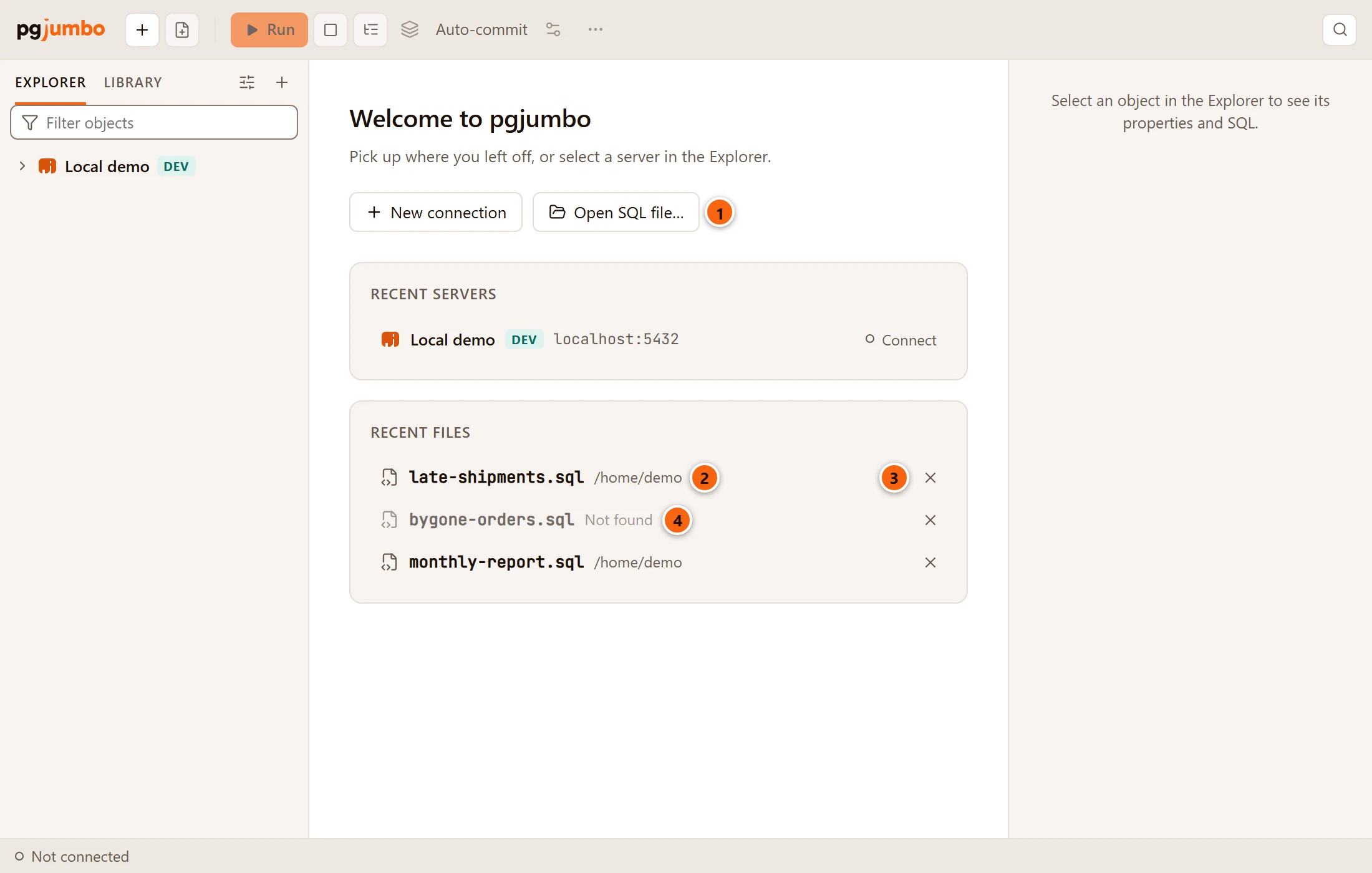
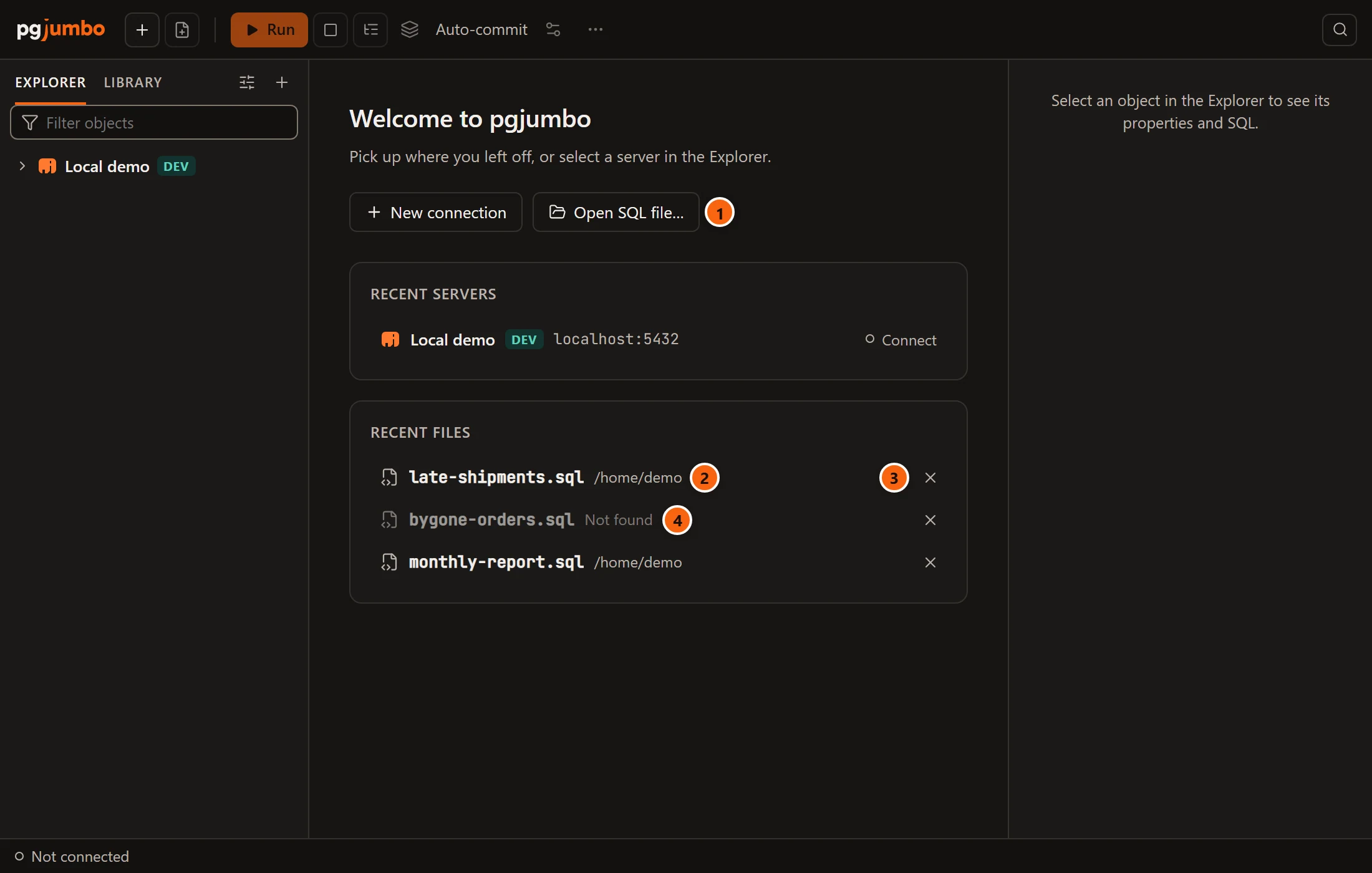
- 1 Open SQL file… shows the Open dialog.
- 2 Each file shows its name and the folder it is in; hover to see the whole path. Click it to open it in a new tab, on the server you connected to last (or the first server in the Explorer) and its maintenance database.
- 3 × takes the file off the list. The file itself stays where it is.
- 4 A file that is no longer where it was says Not found and is greyed out; remove it with its ×.
The whole list is greyed out until you have added a server. With no files yet, the card says “The .sql files you open or save show here.”; if pgjumbo cannot read the list, it says “The recent files could not be read.”
Files you open from the Library’s My scripts join the list too, and so do scripts you save to a file from a Script menu or from Generate Scripts (see Script as and the Script menu), because they go through the same Save SQL File dialog.
When the file changes on disk
Section titled “When the file changes on disk”Another program can change a tab’s file while the tab is open: an editor, a pull from your repository, a script. pgjumbo checks the files of your tabs each time it comes to the front, and each time a tab with a file does. A file that was written again with the same text is not a change.
What happens depends on whether the tab has changes of its own:
| The tab | What pgjumbo does |
|---|---|
| Has no changes of its own | It loads the file again and says so in the result bar, as below. |
| Has changes the file does not have | It keeps your text and shows a banner that asks. |


The banner
Section titled “The banner”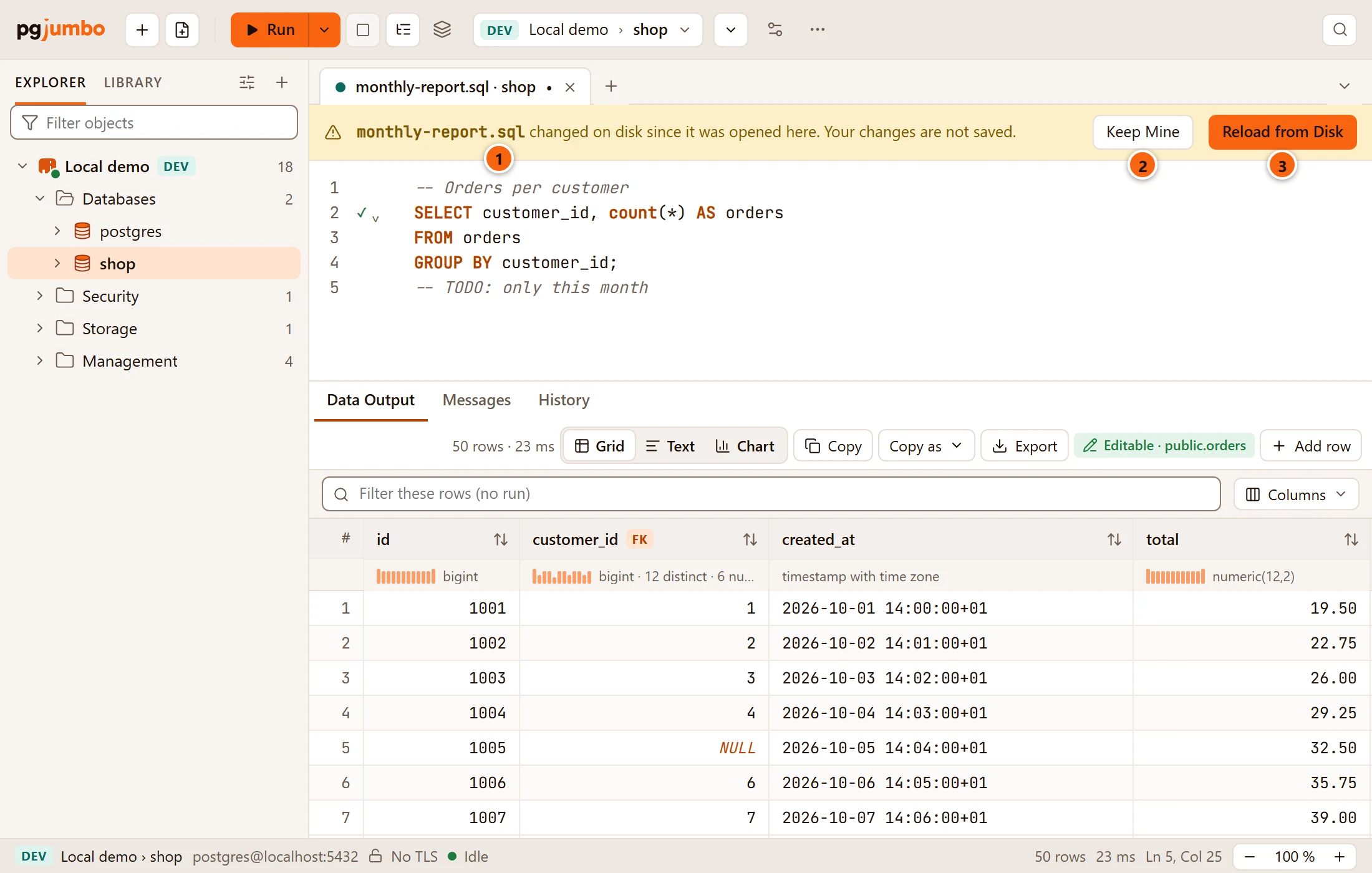
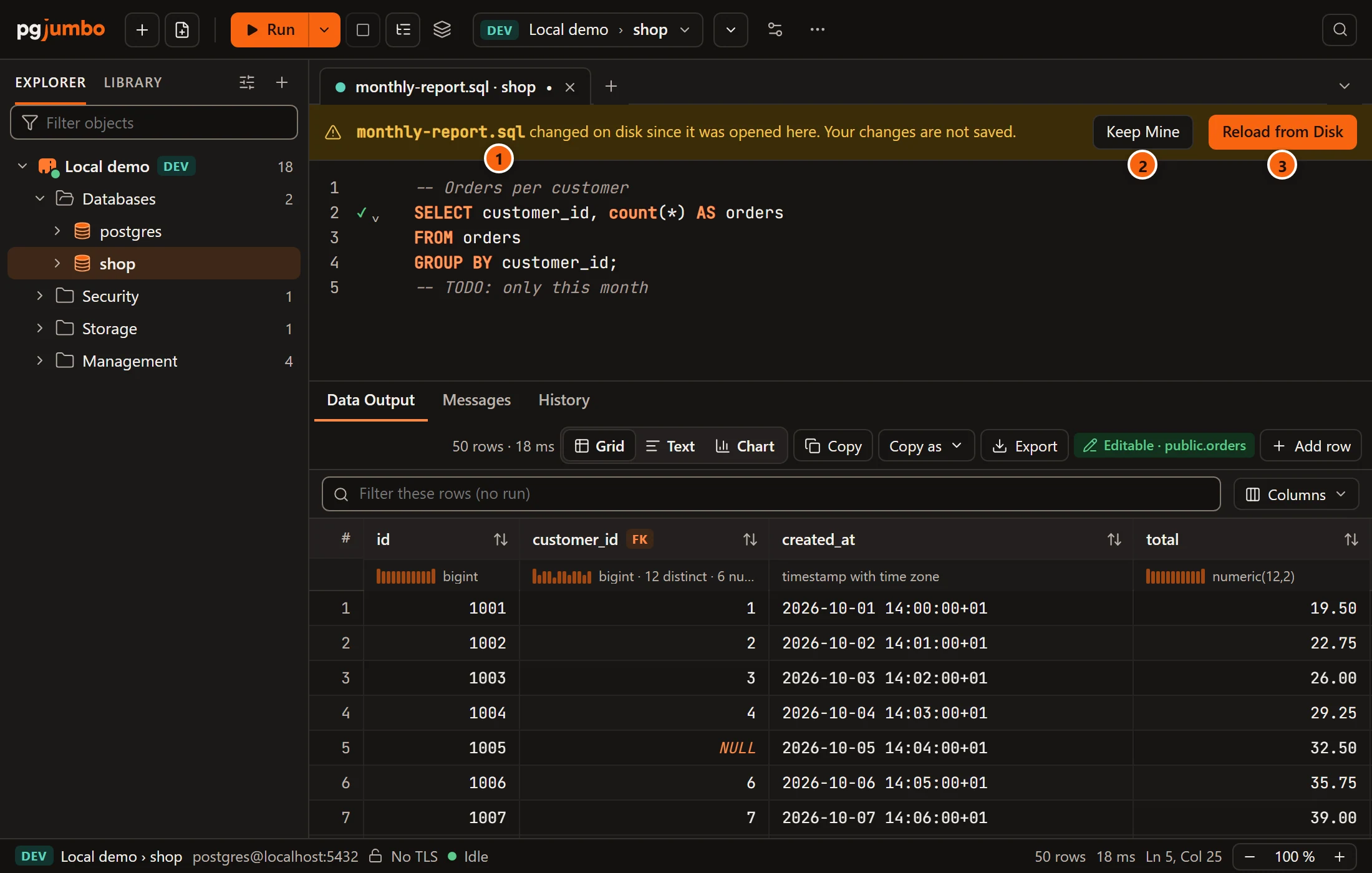
- 1 The banner names the file and says Your changes are not saved. It stays until you answer it.
- 2 Keep Mine keeps the tab’s text and closes the banner. The next Save writes your text over the other program’s change, without asking again. If the file changes once more, the banner comes back.
- 3 Reload from Disk replaces the tab’s text with the file’s. Undo (⌘ Z (Ctrl+Z on Windows and Linux)) brings your text back.
Save while the banner is up
Section titled “Save while the banner is up”Save never writes over a file another program changed without asking. While the banner is up, FileSave asks first:
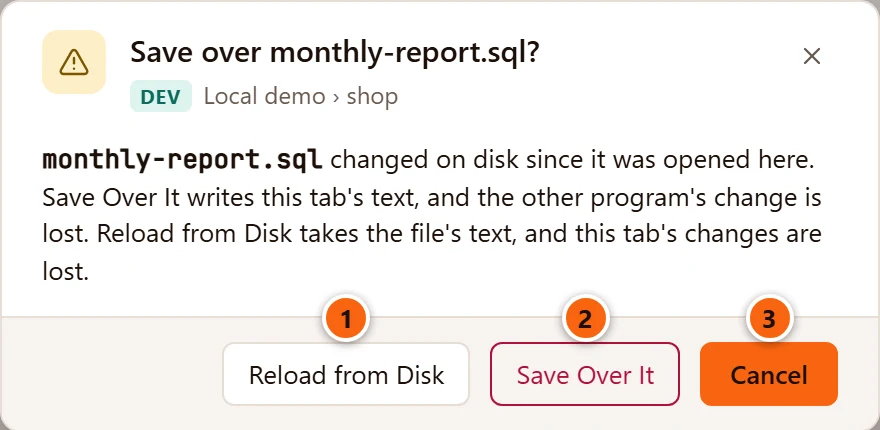
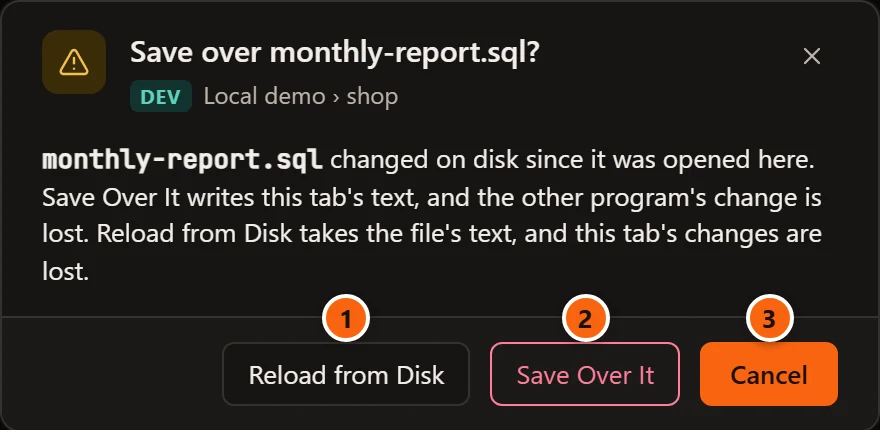
- 1 Reload from Disk takes the file’s text; this tab’s changes are lost, unless you undo.
- 2 Save Over It writes this tab’s text; the other program’s change is lost.
- 3 Cancel writes nothing. It is the default: ↩︎ (Enter on Windows and Linux) and Esc choose it.
A change pgjumbo has not seen yet, made while pgjumbo stayed in front, is caught when you save: nothing is written, the banner comes up, and the same question follows. FileSave As… writes to the file you choose in its dialog, so it does not ask this.
Closing the tab and quitting follow the same rule: Save there does not write over the changed file either. See Drafts, closing and quitting.
A file that is gone
Section titled “A file that is gone”

- 1 When the file was deleted, moved or renamed by another program, the banner says so. Save here, or FileSave, writes the file again where it was. The tab keeps its text meanwhile, and the banner goes away by itself if the file comes back.
Rename a tab’s file
Section titled “Rename a tab’s file”Renaming a tab that holds a file renames the file in its folder. Double-click the tab, press F2 while the tab has the keyboard, or right-click it and choose Rename…; the field holds the file’s name. Type the new one and press ↩︎ (Enter on Windows and Linux). Rename a tab shows the field.
- A name without
.sqlgets it added. - The result bar says Renamed to and the new name. The file stays in its folder, with its text and encoding.
- A name another file in that folder already has is refused: “Could not rename: There is already a file named name in that folder. Choose another name.” Nothing moves, so renaming never writes over another file.
- A name cannot hold
\ / : * ? " < >or|, start or end with a dot, or be one of the names Windows keeps for devices, such asCONorNUL. The result bar says which rule the name broke. - An empty name, or the same name, changes nothing.
To put the file in another folder, use FileSave As…: the tab then belongs to the new file, and the old one stays where it was.